Pulsr

System monitor for macOSLives in the menu bar100% on device

What's eating your Mac, in plain English.

Something's hammering your CPU and you have no idea what. Pulsr keeps CPU, memory, network, disk and battery live in the menu bar, then answers the actual question in a sentence and lets you bring the culprit forward or quit it, right from the list.

v1.2.7 · macOS 13+, including 27 Golden Gate · Apple Silicon & Intel · Signed & notarized by Apple · No account

Also for Windows, version 1.0.1

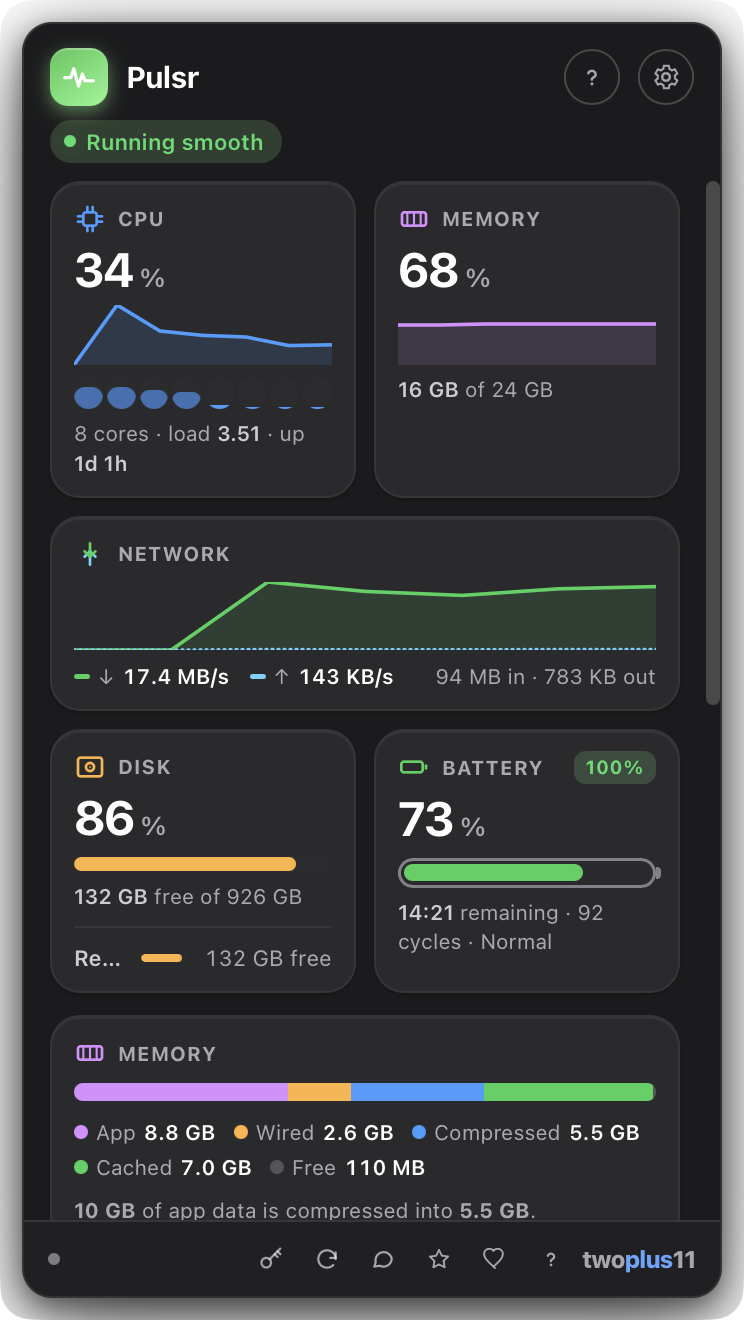
The Pulsr popover open under the macOS menu bar, where the live readout says CPU 13% and MEM 67%. The header reads "Running smooth". Cards show CPU at 13 percent with 8 cores, a load of 2.14 and 22 hours 34 minutes of uptime; memory at 67 percent, 16 GB of 24 GB; network at 4.0 KB/s down and 3.0 KB/s up; disk at 86 percent with 132 GB free of 926 GB; and a battery fully charged at 100 percent after 96 cycles, health Normal. A memory breakdown below splits the RAM into 10 GB App, 2.6 GB Wired, 5.5 GB Compressed, 4.8 GB Cached and 828 MB free.

01  How it works

Glance. Click. Fix it.

Glance at the menu bar
Your vitals sit up there all day, redrawn every couple of seconds. Pick which metrics show and whether they read as plain text (CPU 14% MEM 62%) or as a rolling sparkline.
Click for the full picture
A popover tucks in under the glyph with a sparkline card for every metric: CPU load, memory and swap, network up and down, free disk space, and battery level with its real health.
Read the plain-English answer
Right under the cards, one sentence names the app that's actually responsible (by memory or by CPU, your choice), followed by a ranked list of everything else.
Do something about it
Bring the offending app forward to deal with it, or ask it to quit, right from its row. Click anywhere outside and the popover disappears again.
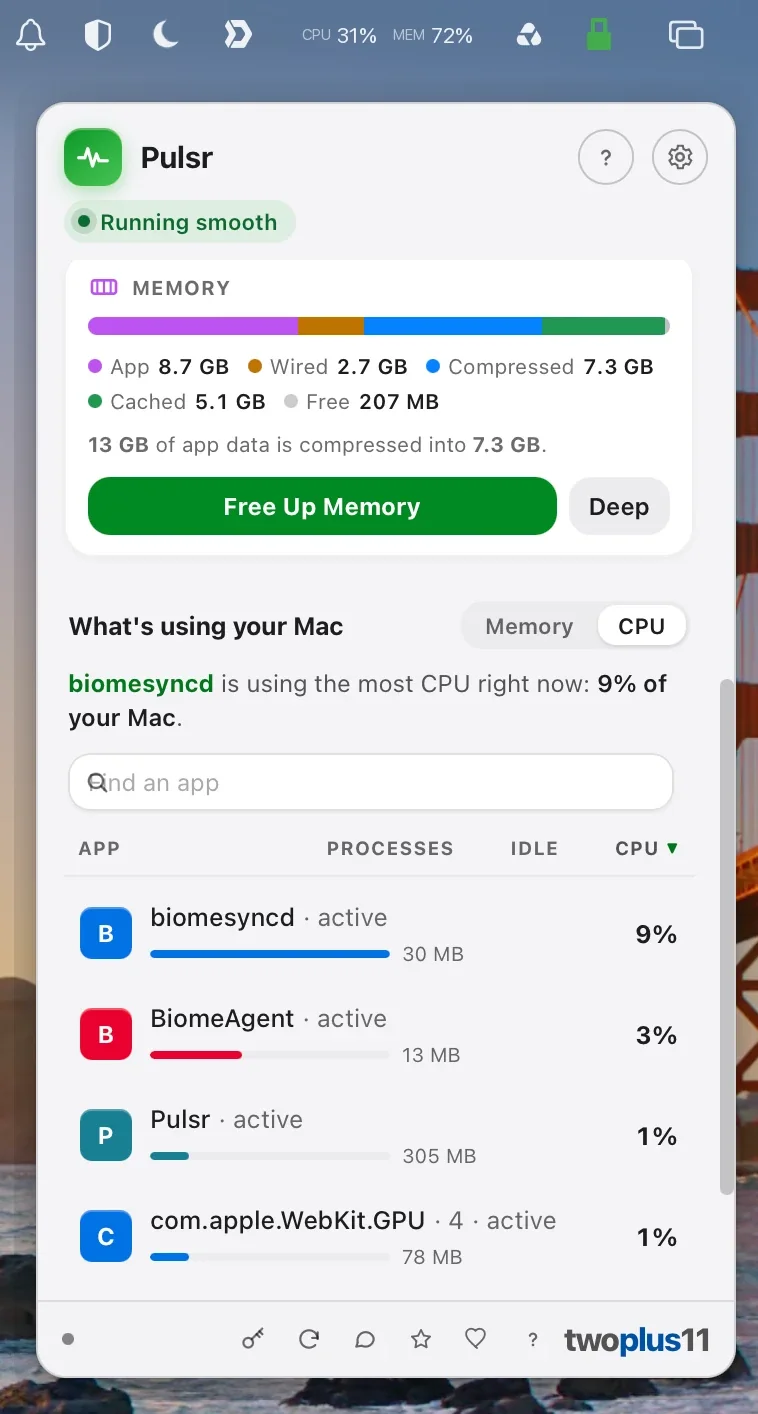
The Pulsr popover showing the memory breakdown: App 8.7 GB, Wired 2.7 GB, Compressed 7.3 GB, Cached 5.1 GB and 207 MB free, with a line reading "13 GB of app data is compressed into 7.3 GB" above Free Up Memory and Deep buttons. Below it, "What's using your Mac" is switched to CPU and reads "biomesyncd is using the most CPU right now: 9% of your Mac", over a ranked list of apps with their memory, idle state and CPU share.
Memory broken down, a button that hands some of it back, and the list that names what is using your Mac right now.

02  Features

A system monitor that answers the question.

Every Mac already has an Activity Monitor. Almost nobody opens it, because a table of 400 processes doesn't tell you what to do. Pulsr does.

Every core, not just an average
A single "25%" reads the same whether the work is spread across every core or one core is pinned while the rest idle, and those are very different problems. Each core gets its own bar, with the efficiency cores drawn as the quieter half.
Per-core
Every disk, not just the startup one
External drives are usually the ones that actually fill up, and they were invisible. Every volume you would see in the Finder sidebar now gets its own bar, but not the synthetic system volumes macOS mounts behind your back.
Externals too
A heat warning you can trust
Pulsr shows the reading macOS itself acts on, and only once it matters: the point where your Mac may be slowing itself down to cool off. No reverse-engineered sensor numbers that go wrong on every new Mac, and no permission prompts.
Quiet until it isn't
Hand memory back, honestly
Free Up Memory makes macOS release what it is holding as cached files and idle pages. Deep Clean goes further, at the cost of a little speed afterwards while your Mac re-reads what it dropped. Pulsr can also clean on its own once free memory drops below a limit you set, and it reports what it actually recovered, so a Mac with nothing to give back is told so rather than shown an invented number.
One click
The whole memory breakdown
App, Wired, Compressed, Cached files and Free, as one bar that adds up to your installed RAM. Compressed memory is usually the biggest slice on a busy Mac and it is the one nothing else shows you. The menu-bar reading turns red when macOS itself reports critical pressure, not when a percentage crosses a number we picked.
Compressed too
Idle apps, called out
An app sitting untouched for half an hour while holding a couple of gigabytes is the one reclaim that gives the memory back for good. Pulsr names it. You quit it from the row, or tell Pulsr to stop mentioning it. Every row also shows how long that app has actually been idle.
Sort the list any way you need
Every column sorts, both directions: app name, memory, CPU, number of processes, or idle time. "Biggest first" answers what is heaviest; sorting by name answers where the app you are looking for went. Names collate the way your language reads them, not the way Unicode stores them.
"What's using your Mac," in plain English
The biggest hog gets called out in a sentence you don't have to decode: "Google Chrome is using the most memory right now: 2.3 GB across 31 processes." Processes are grouped per app, not scattered across dozens of PID rows, so the number matches how you actually think about your Mac.
The headline
Live glyphs in the menu bar
CPU, memory, network, disk and battery as tiny live readouts, redrawn every couple of seconds. Show all of them or just the one you care about. The glyph is a template image, so it picks up your light or dark menu bar automatically, no configuration.
Always visible
Text or Graph, your call
Prefer numbers? Text style reads CPU 14%  MEM 62% at a glance. Prefer shape over digits? Graph style draws a rolling sparkline per metric instead, so a spike is something you notice out of the corner of your eye.
Two styles
Act on it without leaving
Every app in the ranked list has two buttons: bring it forward, or ask it to quit. Quitting is a normal, polite quit request: the app can still prompt you to save. System processes are labeled and have no quit button, so you can't take down the OS by mistake.
Two clicks
Memory, honestly
Used and free against your real total, plus swap when your Mac starts leaning on it. That's the pair that actually tells you whether you're low on RAM or genuinely under pressure, the distinction a single percentage hides.
Swap included
Network, up and down
Live throughput in both directions on one sparkline (download in green, upload dashed) with running session totals underneath. Handy for catching the backup, sync client, or update that quietly started saturating your connection.
Session totals
Battery health, not just charge
Charge level and time remaining, plus the numbers you'd otherwise dig out of System Information: cycle count, condition, and maximum capacity as a percentage of the day it left the factory.
Cycles · condition
Disk before it bites you
Free space against total, with the card changing tone as the drive fills so "almost out of disk space" arrives as a warning rather than a failed save. Read and write throughput appear alongside it when there's room.
A friendly overall read
One pill at the top of the popover sums everything up the way a person would: Running smooth, Working hard, Under memory pressure, Almost out of disk space. Most days you look at that and close the window. And a monitoring app must never have a failure that looks like good news, so a reading Pulsr cannot take says Unavailable on its own card rather than showing a zero, and if the readings stop arriving at all the window says that too, out loud for VoiceOver.
At a glance
100% on your Mac
Every reading is taken locally. Nothing about your system, your apps, or your activity ever leaves the machine: no account, no cloud, no usage analytics, no history uploaded anywhere. The only network call is the update check.
Privacy
Stays out of the way
Pulsr runs as an accessory app: no Dock slot, no app-switcher entry, no window to manage. The popover tucks under the glyph and dismisses the moment you click away. Set the refresh interval to 1, 2, 3 or 5 seconds, and have it open at login.
Menu-bar native
Light and dark, properly
The whole popover follows your Mac's appearance, and every metric keeps its own Apple system hue in both (CPU blue, memory purple, network green, disk orange, battery green), so you learn the colors once and read the cards by shape after that.
Signed & notarized
Opens with a normal double-click: no "unidentified developer" warning, no Open Anyway, no Terminal. Signed with an Apple Developer ID and notarized by Apple. One universal build for Apple Silicon and Intel.
No warnings
Built for everyone
Keyboard-navigable throughout, with VoiceOver labels and live announcements on the readings, honored Reduce Motion, and WCAG 2.1 AA contrast in both light and dark.
WCAG 2.1 AA
Speaks your language
Pulsr's interface comes in 13 languages: German, Spanish, French, Italian, Japanese, Korean, Dutch, Polish, Brazilian Portuguese, Russian, Turkish and Simplified Chinese, alongside English. It auto-detects your Mac's language on first launch, and the picker in settings switches it instantly. Sizes, speeds and dates follow the language you picked, so a German window writes 8,4 GB rather than 8.4 GB.
13 languages
03  What it watches
CPU load & cores Memory & swap Network up & down Disk space & I/O Battery level Battery health Top apps by memory Top apps by CPU Every core, separately Uptime Memory pressure Compressed & cached memory Every mounted volume Thermal state Idle apps

05  Pricing

Free. For everyone.

Pulsr is free for everyone, at home and at work. No license, no account, no nag screens, no watermarks, ever.

Personal
Free forever
For individuals and personal projects
  • The full app, every feature
  • No account, no nag screens
  • Free updates forever
Download, Free
At work
Free commercial too
No license, no subscription
  • Everything in Personal
  • Use it commercially at work, free
  • No license to buy, ever
  • Free updates forever
Download, Free

Pulsr is free for everyone, including commercial use at work. There is no license to buy and no subscription. The same app runs on the Mac and Windows builds.


06  Download & install

Get set up in seconds.

Download the app and drag it into Applications. That's it. No Terminal, no Homebrew, no sign-up.

Download Pulsr for macOS, Free

Version 1.2.7 · Released October 18, 2026 · Free updates forever

macOS 13 Ventura or later, including macOS 27 Golden Gate · Apple Silicon or Intel
Everything Pulsr needs is built right into the app: no Python to install, no Homebrew, nothing else to set up. One universal build runs natively on Apple Silicon and Intel.
Opens with a double-click
Pulsr is signed with an Apple Developer ID and notarized by Apple, so it opens cleanly the first time: no Open Anyway trip through System Settings, no Terminal. Open the DMG, drag Pulsr into Applications, and launch it.
Look up, not down
Pulsr has no Dock icon by design. After launch it appears as a small live glyph on the right side of your menu bar. Click it to open the popover; click anywhere else to dismiss it.
Check the file you downloaded
Pulsr is signed with an Apple Developer ID and notarized by Apple, and macOS checks that every time you open it. That is the check that catches a file altered on its way to you. To confirm it yourself, compare the SHA-256 of your copy with the one published for the Pulsr.dmg this page serves.
SHA-256 checksum
Published checksum
Run this on your download and compare
shasum -a 256 ~/Downloads/Pulsr.dmg

Or have your Mac compare them for you: save Pulsr.dmg.sha256 beside the download and run shasum -a 256 -c Pulsr.dmg.sha256.


07  FAQ

Common questions.

Is Pulsr really free?
Personal use is free forever: every metric, the full process list, no account, no trial timer, no nag screens. It is free for commercial use at work too, with no license to buy and no account.
What actually shows up in my menu bar?
Whichever metrics you pick (CPU, memory, network, disk, battery, or any combination), drawn as tiny live glyphs that redraw every couple of seconds. Choose a plain Text style that reads like CPU 14%  MEM 62%, or a Graph style that draws a rolling sparkline instead. The glyph is a template image, so it follows your light or dark menu bar automatically.
Does Pulsr send anything anywhere?
No. Every reading is taken locally on your Mac with psutil, and nothing about your system, your apps, or your activity ever leaves the machine. There is no account and no usage analytics. The only time Pulsr contacts our server is to check for updates, which sends the app version.
How is this different from Activity Monitor?
Activity Monitor is a table of processes you have to go open, read, and interpret. Pulsr lives in your menu bar and answers the question in a sentence: "Google Chrome is using the most memory right now: 2.3 GB across 31 processes." Processes are grouped per app rather than listed one row per PID, and you can bring an app forward or ask it to quit right from its row.
Can I quit an app from Pulsr?
Yes. Every app in the ranked list has two buttons: bring it forward, or ask it to quit. Quitting sends a normal, polite quit request (the same one you'd send with ⌘Q), so the app can still prompt you to save. System processes are marked as such and have no quit button, so you can't knock the operating system over by accident.
Does it show battery health?
Yes. Alongside the current charge level and time remaining, the battery card shows cycle count, condition, and maximum capacity as a percentage of the original: the numbers you'd otherwise dig for in System Information. On a desktop Mac with no battery, the card simply doesn't appear.
Won't a system monitor slow my Mac down?
Pulsr reads a handful of system counters on a timer and draws a small glyph. You control how often that happens (1, 2, 3 or 5 seconds), so if you want it lighter still, dial the interval up. There is no background indexing and no history database, and the only network activity is the weekly update check.
Why isn't Pulsr in my Dock?
That's deliberate. Pulsr runs as an accessory app, which means it lives in the menu bar and doesn't take up a Dock slot or show up in the app switcher. Click the menu-bar glyph to open it; click away to dismiss it. You can also have it open automatically at login from settings.
Will macOS warn me about an unidentified developer?
No. Pulsr is signed with an Apple Developer ID and notarized by Apple, so it opens with a normal double-click the first time: no Open Anyway trip through System Settings, no Terminal.
How do I update Pulsr?
Pulsr updates itself. It checks about once a week and, when a new version is out, shows you what changed and offers to install it in place. The download is signature-checked, and one that doesn't verify is refused. You can also check on demand, turn the automatic check off in the update panel, or download the DMG from this page and drag it into Applications yourself. Your settings carry over.
Is there a Windows version?
Yes, in beta. Pulsr for Windows runs on Windows 10 (version 1809 or later) and Windows 11, 64-bit, and installs without admin rights.
Also by the same solo developer Heftr Pulsr tells you the disk is filling up. Heftr tells you what's filling it: an X-ray of any file or folder that explains why it's so big. And if the answer is video, Squishr shrinks it. Free.

Like what I make?

All my apps are free for personal use. If they save you time or make your day a little easier, a tip keeps me going. It goes straight to development, no middleman.

Payments are handled by Stripe. We keep the name and email Stripe gives us only to say thanks.

Hear about new apps first

One short email when twoplus11 ships a new Mac app. No spam, and unsubscribing is one click that works instantly.

One confirmation email first. You're only in if you click it.

More Mac apps from twoplus11

Free for personal use, running entirely on your Mac: no account, no subscription, and nothing uploaded.

Pulsr compared with other Mac system monitors

Pulsr puts CPU, memory, network, disk and battery in the menu bar, and then tells you, in a sentence, what is actually slowing the machine down.

Prices and capabilities checked August 2026. Each maker’s own site is the authority on its side of this table.

Pulsr compared with Stats, iStat Menus and Activity Monitor
Capability Pulsr Stats iStat Menus Activity Monitor
Price Free, including commercial use Free, open source About $12 one-time Built into macOS
Menu-bar readouts Yes Yes, highly configurable Yes, the most configurable No
Historical graphs No Some Yes No
Temperature and fan sensors No Yes Yes No
Says what's slowing you down Yes, in plain English No, just numbers No, just numbers No, just numbers

When to use something else

Stats is free, open source, very widely used, and covers most of what iStat Menus does. Start there if you want numbers in your menu bar and nothing else. iStat Menus is the most capable of these by a distance: sensors, history, thresholds and notifications, for about $12. Pulsr is for the person who doesn't want to interpret the numbers. It names the process and says why the machine feels slow.

If this is what you came here to solve

Why is my Mac slow right now?
Pulsr names the process and the resource in a sentence, rather than handing you five graphs.
My fans are loud and I don't know what's running
The CPU readout shows the culprit; Activity Monitor is one click away when you want detail.
Is something uploading in the background?
Live network throughput sits in the menu bar, so you notice without going looking.